Blocks
Blocks are the constructor's main building elements. Each block has a specific function: observing the market, calculating chart levels or creating a trade.
Panel (palette)
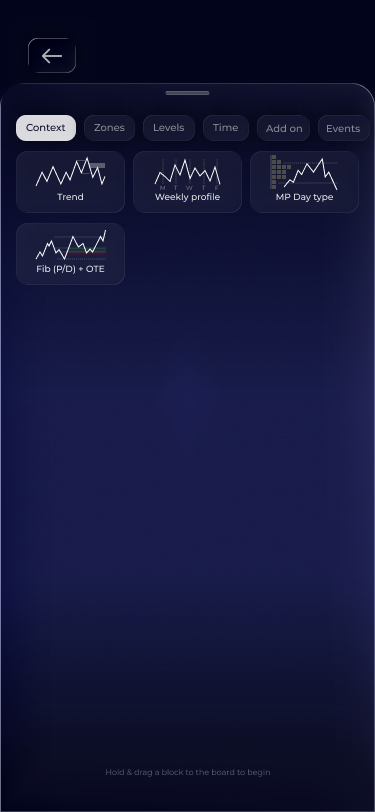
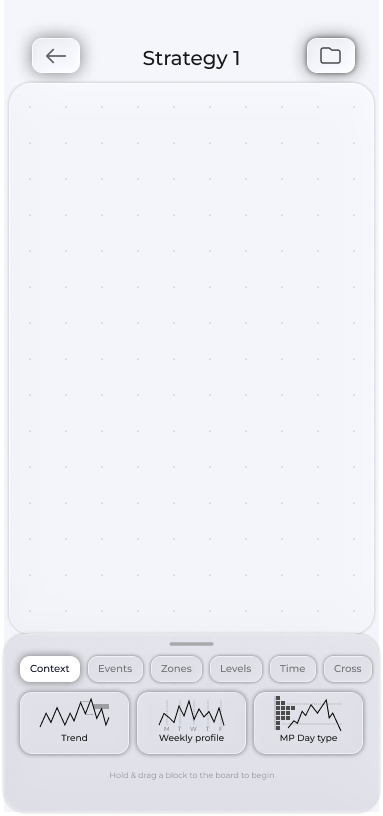
The panel sits at the bottom of the Whiteboard. Blocks are arranged in groups that scroll horizontally. Hold and drag a block to place it on the Whiteboard.
Context — market context: Trend (first on the left), Weekly Profile, MP Day Profile, Fib P/D + OTE.
SMC zones — smart-money zones: FVG, IFVG, Order Block, Breaker Block, Rejection Block, Gap, STB/BTS, BPR.
MP zones — market-profile zones: Single Print, NDOG/NWOG, Buy/Sell Tail, Initial Balance.
Levels — levels: Sweep, BOS, VAH/VAL, POC, STDV, Session High/Low, PDH/PDL, PWH/PWL, DWMY Opens.
Time — timing: Timings, News.
Add-on — additions: SMT, Sync TF.
Events — entry events: Zone touch, Zone break.
Trade — trade management: SL, Trailing of SL, TP, BE, Risk Management.
Blocks unavailable on your plan are locked and lead to the plans screen.
Ask Voxum AI about any block: what the zone or level is, how it works in theory and which settings it has. It is quicker than a reference manual.
Block settings
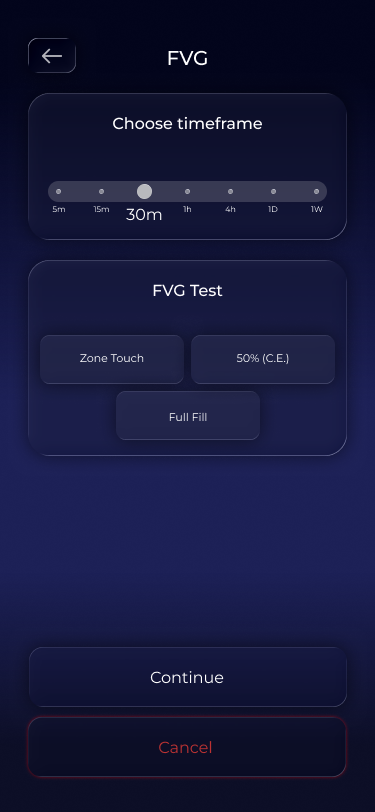
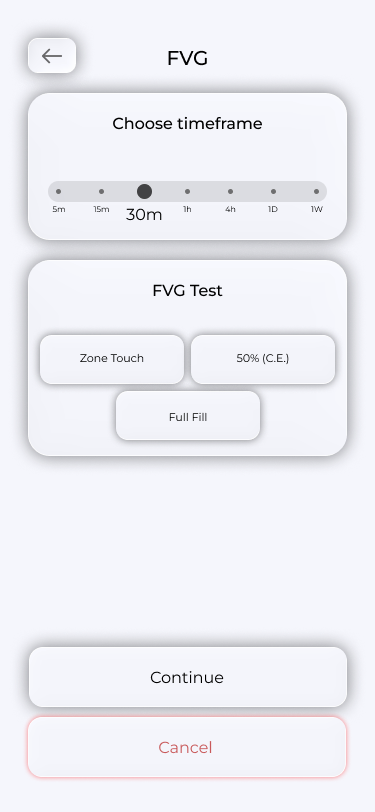
Tap a block on the Whiteboard to open its settings. Settings are grouped into timeframe sliders, option cards, checkboxes and numeric sliders. Tap a number to enter it with the keyboard.
Useful information:
- Options that are impossible in the current layout are dimmed. Tap a dimmed option to learn why it is unavailable.
- In Take Profit settings, each target has its own row. Fixed RR mode provides a separate RR; object-target mode offers a dropdown with all whiteboard zones and levels. Selecting a target draws the required wire automatically. Set volume shares manually or use Equal Split.
- Timings windows and blocked hours are shown in your time zone and stored in UTC.
Continue saves settings, Cancel discards them and Remove Block removes the block from the whiteboard.