Quick start
This page takes you from installing the app to your first recommendation. The whole journey takes up to 10 minutes.
Step 1. Sign in
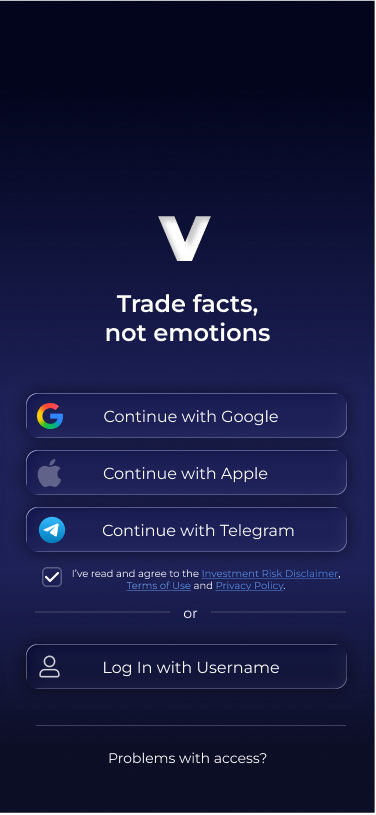
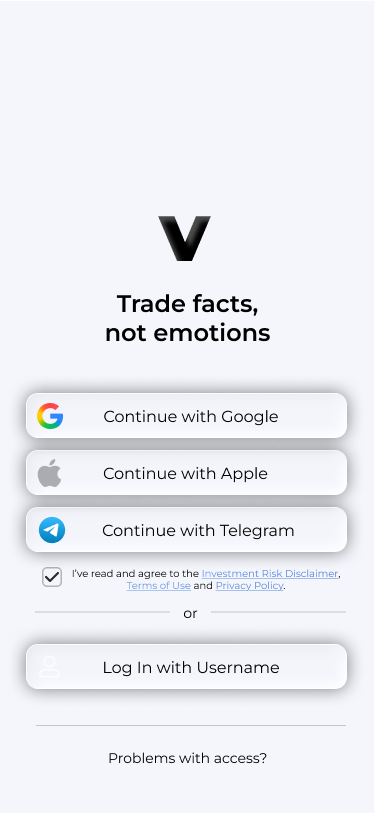
When you first launch the app, you will see three product slides with a Get Started button, followed by the sign-in screen. You can register with Google, Apple, Telegram or a username and password. Signing in through a service means you do not need to remember a separate password.
Step 2. Take the tour
A 10-step tour starts automatically after your first sign-in. It highlights real buttons in the app, and you can tap them during the tour. Complete it to learn where everything is. The tour appears once.
Step 3. Build your first strategy
Your strategy is the heart of Voxum: the app looks for entries according to its rules. The quickest way to start is with a ready-made template.
1. Open the Bots tab at the bottom and tap Create Strategy.
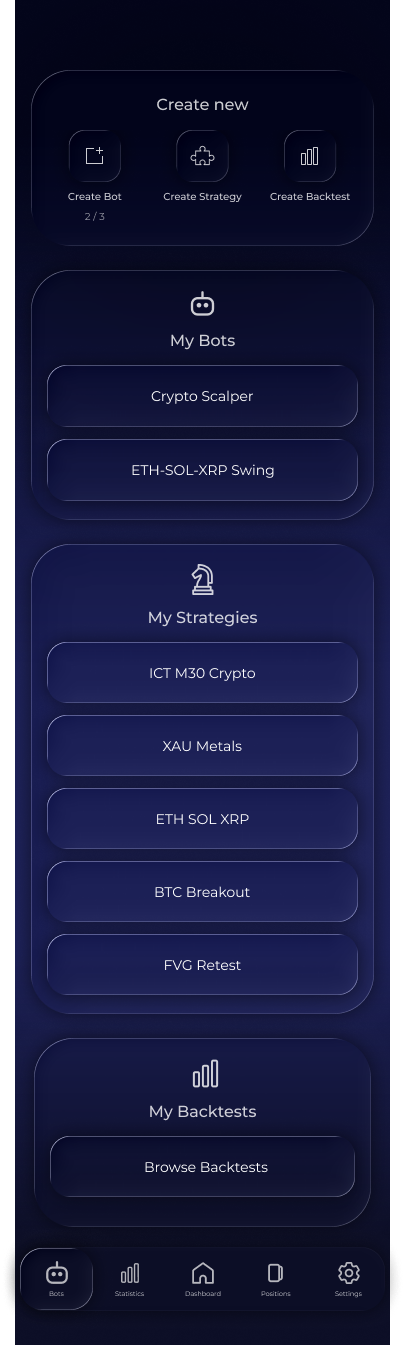
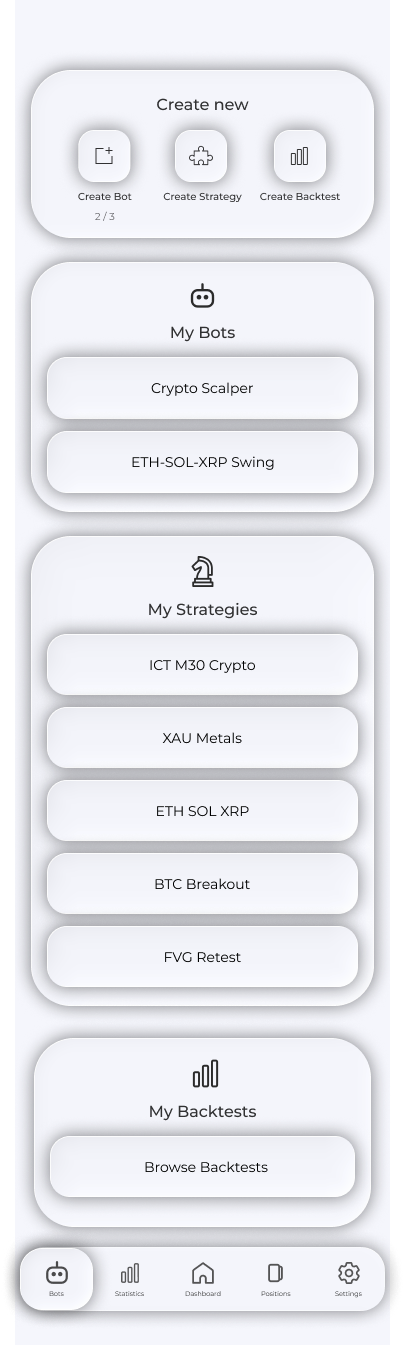
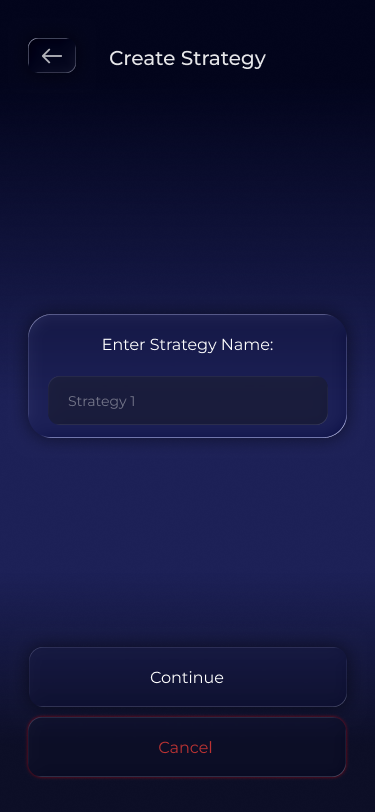
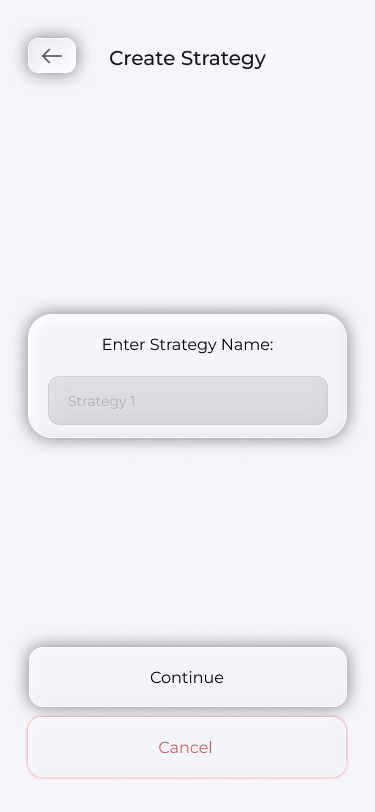
2. Enter a name and tap Continue to open the Whiteboard.
3. Tap the folder in the top right to open the template gallery.
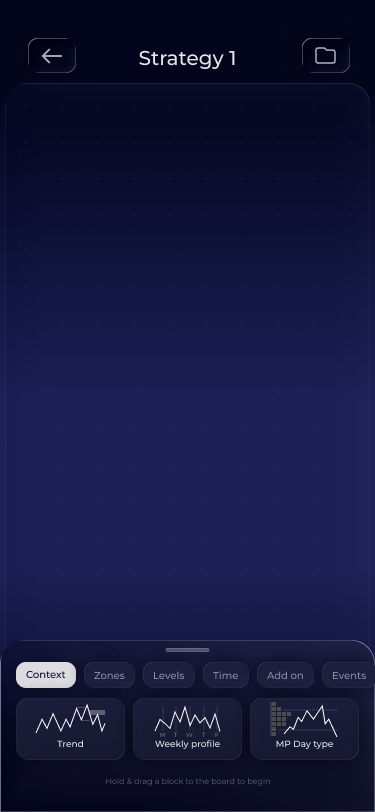
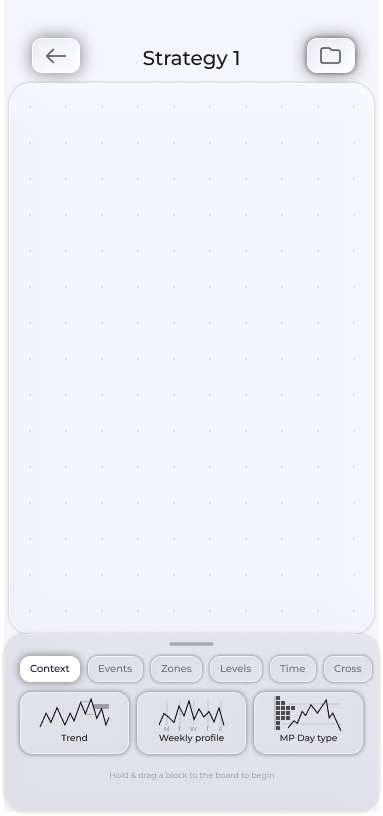
4. Select a template and tap Use this Template to copy its layout to the whiteboard.
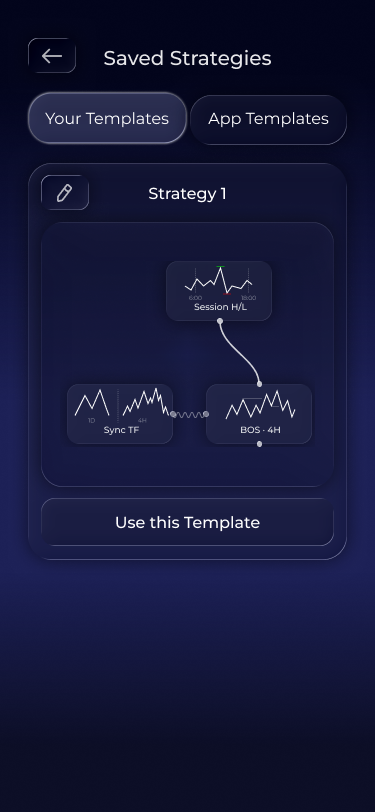
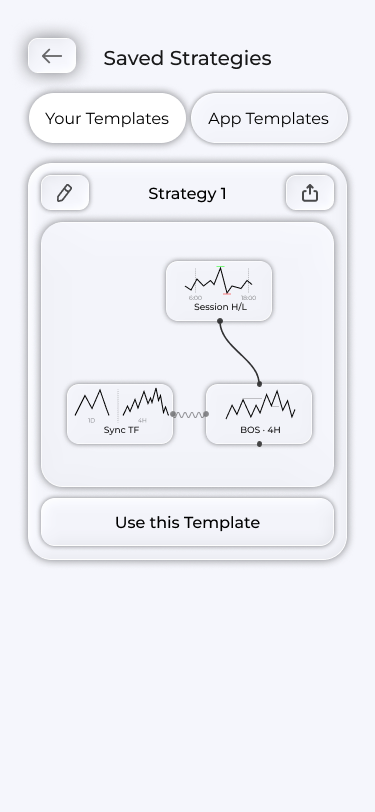
5. Tap Save Strategy. Your strategy is now saved.
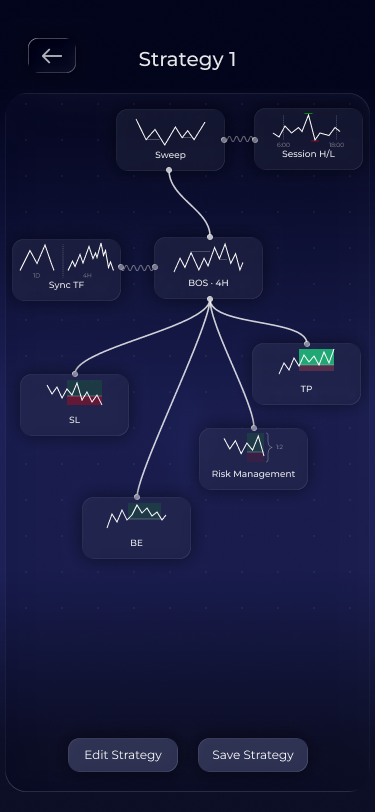
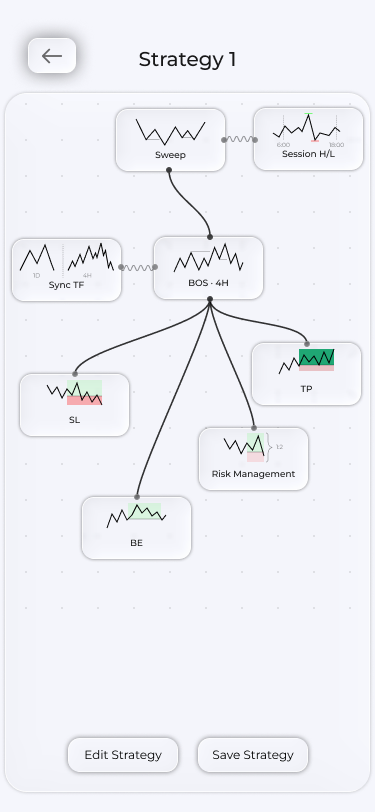
Tip. Do not try to build the perfect strategy from scratch straight away. Take a template, explore how it works and adapt it later. You can ask Voxum AI what any block does—we will get to that shortly.
Step 4. Test your strategy
Before waiting for live recommendations, test your strategy on historical data.
1. In the Bots tab, tap Create Backtest.
2. Name the test, choose your strategy (Select Strategy), pairs (Select Pairs) and period (Select Date Range).


3. Enter a deposit and tap Run Backtest.
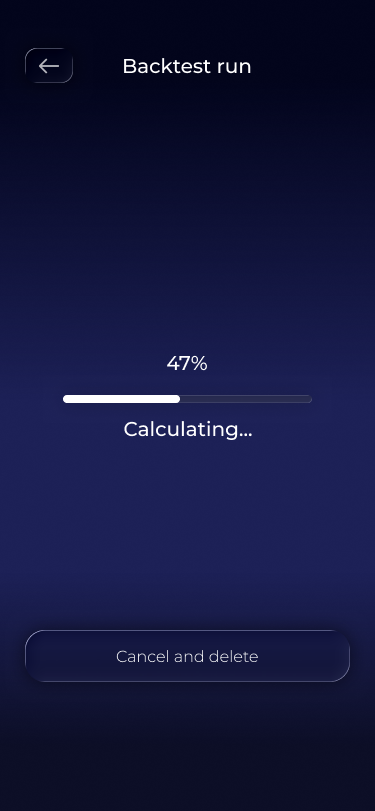
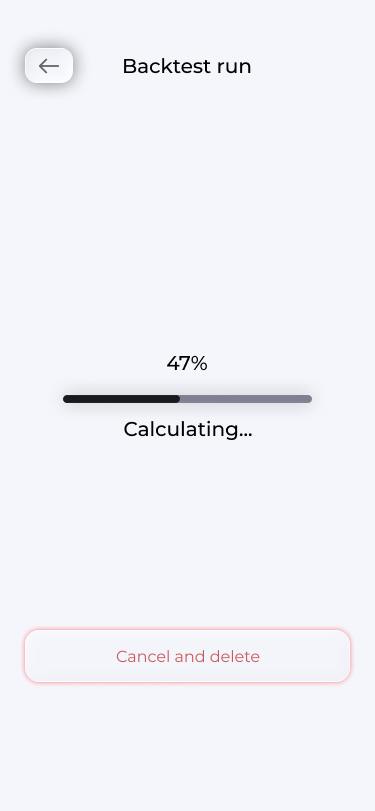
The test enters the queue, and you can follow its progress on the results screen. When it finishes, you will see how many trades there would have been, the win rate, the drawdown and the potential earnings. See the Backtest article for details.
Step 5. Create a bot
A bot turns your strategy into live recommendations.
1. In the Bots tab, tap Create Bot.
2. Fill in the form: name, market, your strategy, pairs, deposit and risk per position.


3. Continue, review the summary on the confirmation step and tap Confirm.
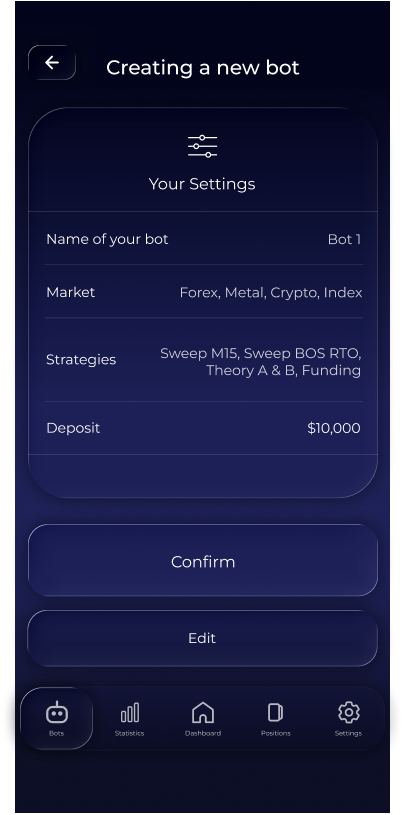
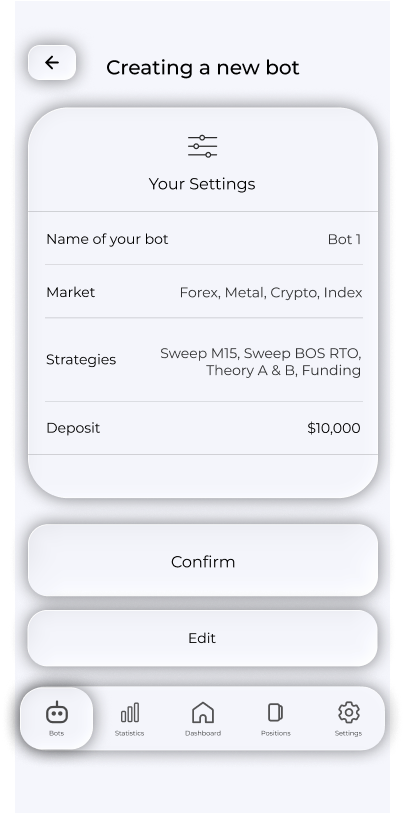
The bot now scans the selected pairs according to your strategy's rules.
Step 6. Wait for your first recommendation
When the strategy finds an entry, you receive a push notification and the recommendation appears under Positions → Recommended. Open it to see the chart, entry, SL, TPs and a plain-language explanation of why the entry was found. Enter Position opens a virtual position based on the recommendation.


Frequently asked questions
Do I need to pay to get started?
No. Free includes the constructor with a basic set of blocks, backtests, a bot and recommendations. See Plans for what each plan includes.
I do not understand the blocks. Where should I start?
Start with a template (Step 3) and questions to Voxum AI. It explains every block and screen.
Will recommendations arrive if I close the app?
Yes, you will receive a push notification. Make sure notifications are enabled in Settings.