Recommendations and positions
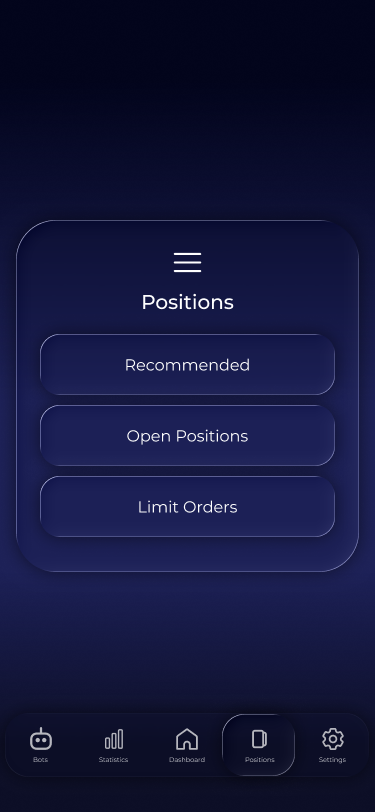
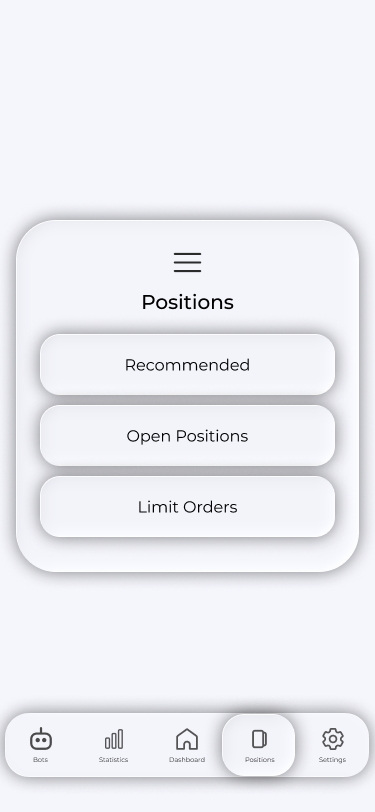
The Positions tab is your trade hub: it contains strategy recommendations, open virtual positions and limit orders.
Positions tab
There are three buttons: Recommended, Open Positions and Limit Orders. Each opens its own list. Every list has a filter for pair, side, date and time, and a price-alert bell.
Recommended
Recommendations contains live recommendations from your strategies: pair, direction, entry, SL and TPs in each row. Tap to open recommendation details:
- A chart around the setup;
- Entry, stop and take-profit levels with RR;
- A plain-language entry explanation—which strategy conditions aligned;
- Personal notes, saved automatically, and alerts;
- Enter Position and Ask AI buttons.


Open Positions
This list contains all active positions: pair, side, volume, entry and live PnL. Tap a position for a detailed view: chart, entry and current price, SL and TPs, PnL, RR, status, entry explanation if it came from a recommendation, notes and screenshots. In Details, edit the trade or close it partly or completely.


Limit Orders
Limit orders are positions that have not opened yet: pair, side, trigger price and volume. Details include the chart, trigger price, SL and TPs, volume, entry explanation, notes and screenshots. Editing changes the order; Cancel Order removes it.
1. Tap an order in the Limit Orders list.
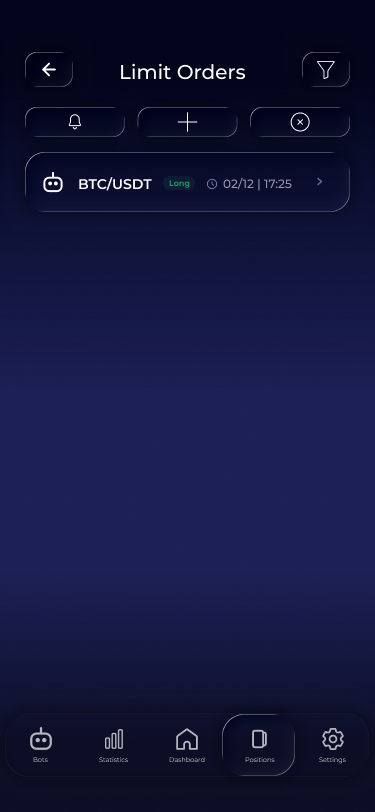
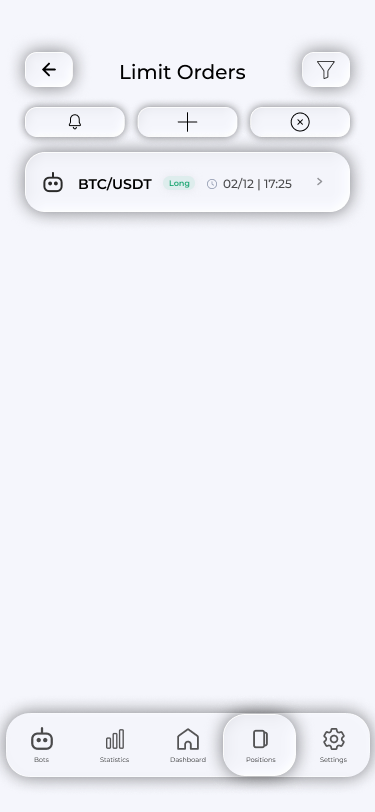
2. Order details show levels, volume, the entry explanation, notes and the chart.


Creating a position
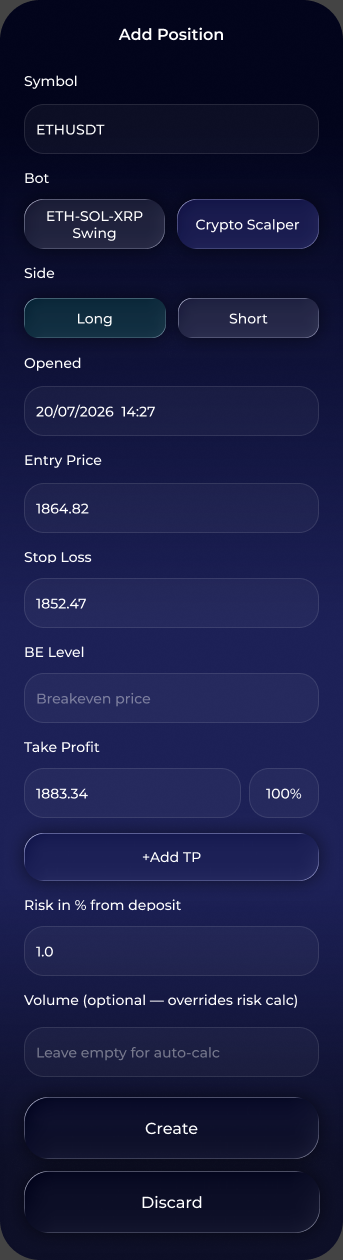
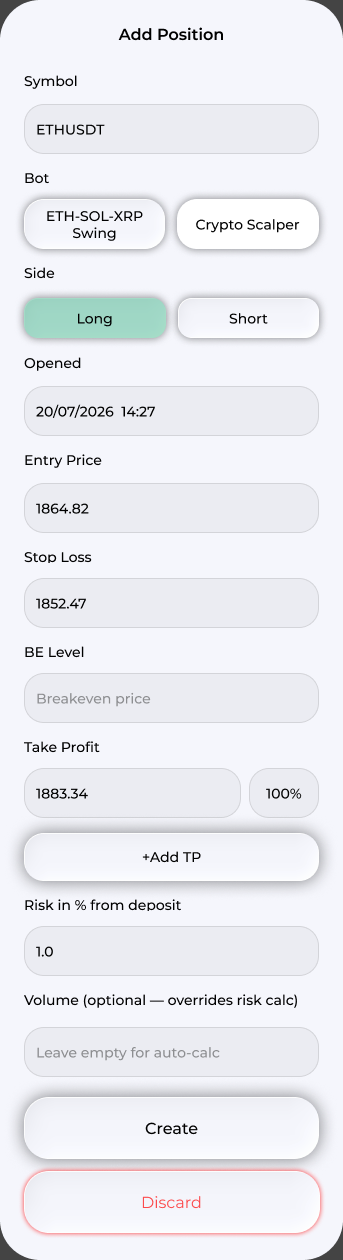
Tap the plus in open positions or limit orders, depending on what you need. Enter the position details: pair, entry time, entry price and other information.
1. Open Open Positions and tap the plus above the list.
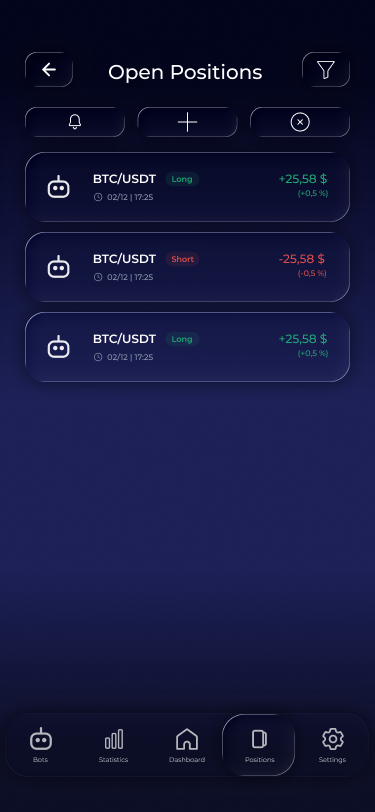
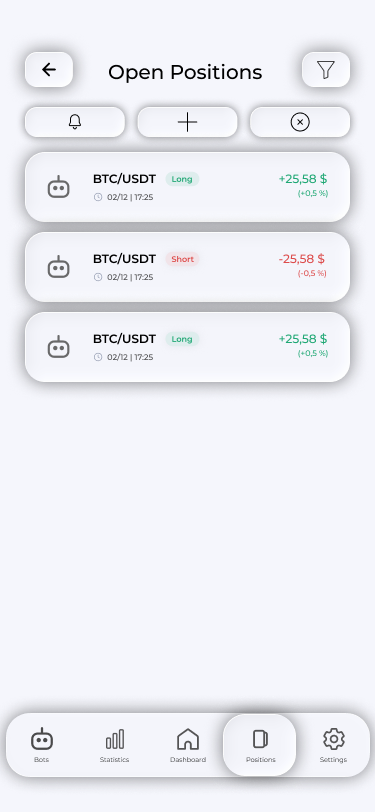
2. Fill in the position details and tap Create.
Notes and screenshots
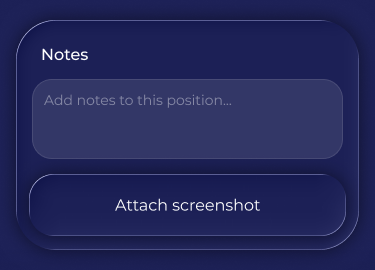
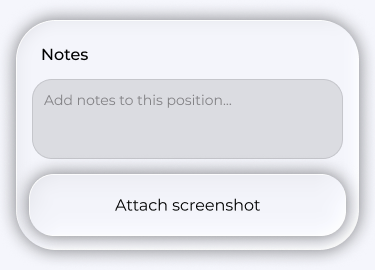
Every trade detail screen lets you add automatically saved notes and attach chart screenshots. Record why you entered and what you saw: this is particularly useful when reviewing statistics.
Price alerts
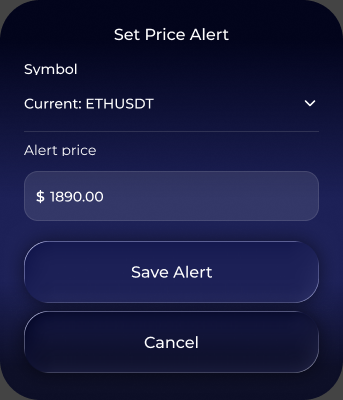
The bell on open-position and limit-order lists, and on detail screens, opens price alerts. Set a level for a pair to receive a notification when the market reaches it. Existing alerts can be viewed and deleted in the same window. The number of simultaneous alerts depends on your plan.
1. Open Open Positions and tap the bell above the list.
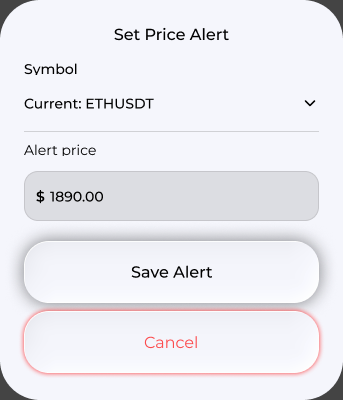
2. Set Price Alert opens over the positions list. Select the symbol, enter the alert price and tap Save Alert.
Frequently asked questions
Will an open position close automatically?
Yes. A virtual position follows the current price. Reaching SL or TP closes it and records the result in statistics.
How is a limit order different from an open position?
A limit order waits for its price. When the market touches it, the order becomes an open position.
Can I close several positions at once?
Yes. Select the rows using checkboxes and tap Close positions, or Cancel for limit orders.